The Health app now allows you to set up a Sleep Schedule that works with your Sleep Focus on iPhone to help you get a good night’s sleep. Find out how to set up Sleep in the Health app.
Go to bed on time with a bedtime reminder on your iPhone.
Get a healthy amount of sleep by setting up a Sleep Schedule and Sleep Goal on your iPhone.
How to Set Up Sleep in the Health App
System Requirements
This tip was performed on an iPhone 16 running iOS 18.3.1. Find out how to update to the latest version of iOS.
You can use the Sleep in the Health app to improve your sleep routine. Here’s how to use Sleep to set up Sleep Goals on your iPhone, change Sleep Goals, set up a Sleep Schedule, set a Bedtime Reminder and wakeup alarm, and more. Now, here’s how to set up Sleep in the Health app:
Open the Health app.
Tap the Browse tab.
Scroll down and tap Sleep.
If this is your first time accessing the Sleep settings, tap Get Started to set up your Sleep Schedule.
Tap You do not have a Sleep schedule under Full Schedule & Options.
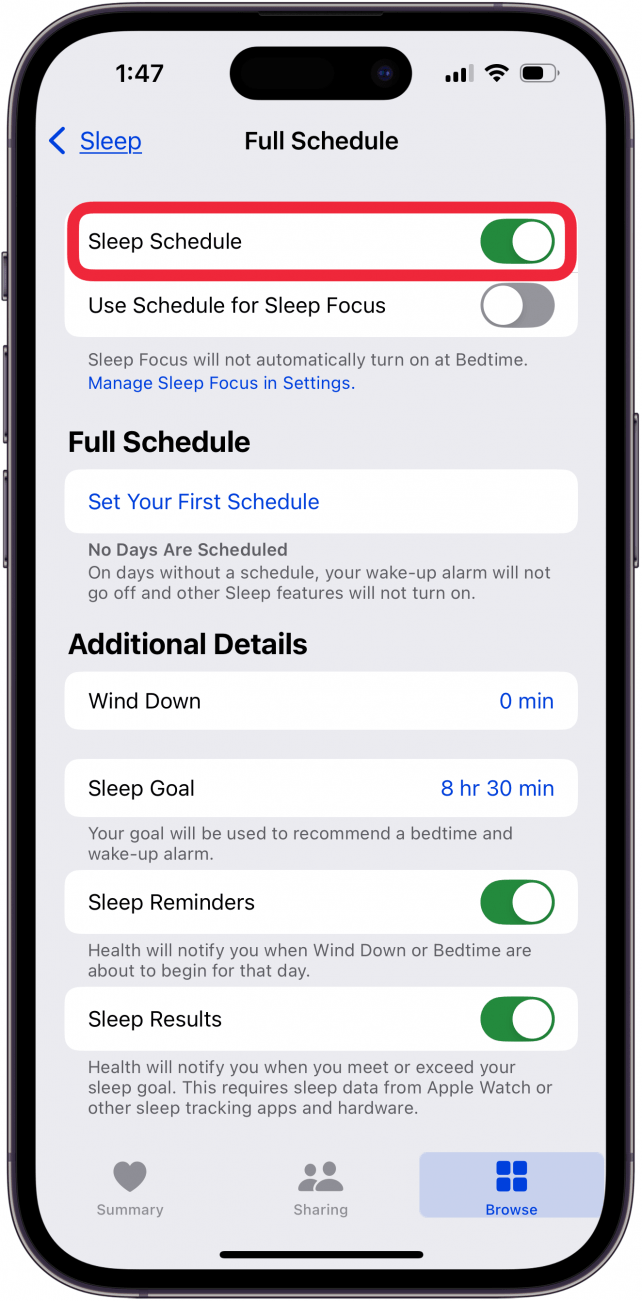
Toggle on Sleep Schedule.
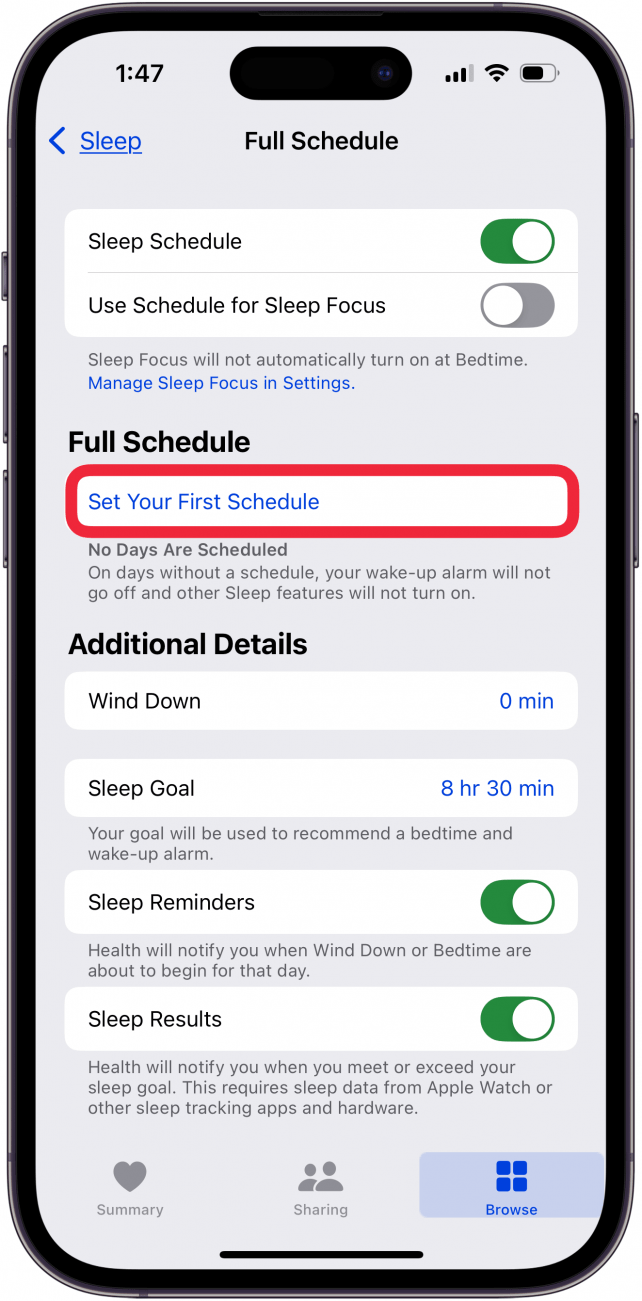
Tap Set Your First Schedule.
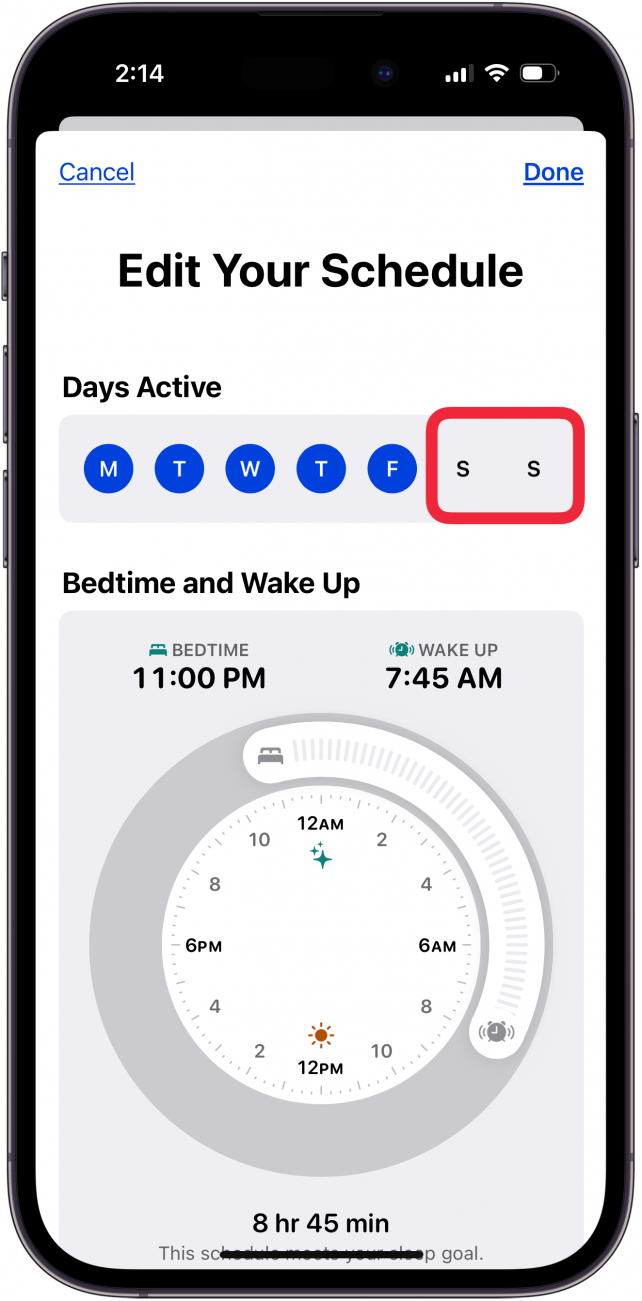
Tap the days you DON’T WANT included in your sleep schedule.
To set your bedtime and wake-up times, drag the Bedtime and Wakeup sliders to when you want to go to sleep and wake up.
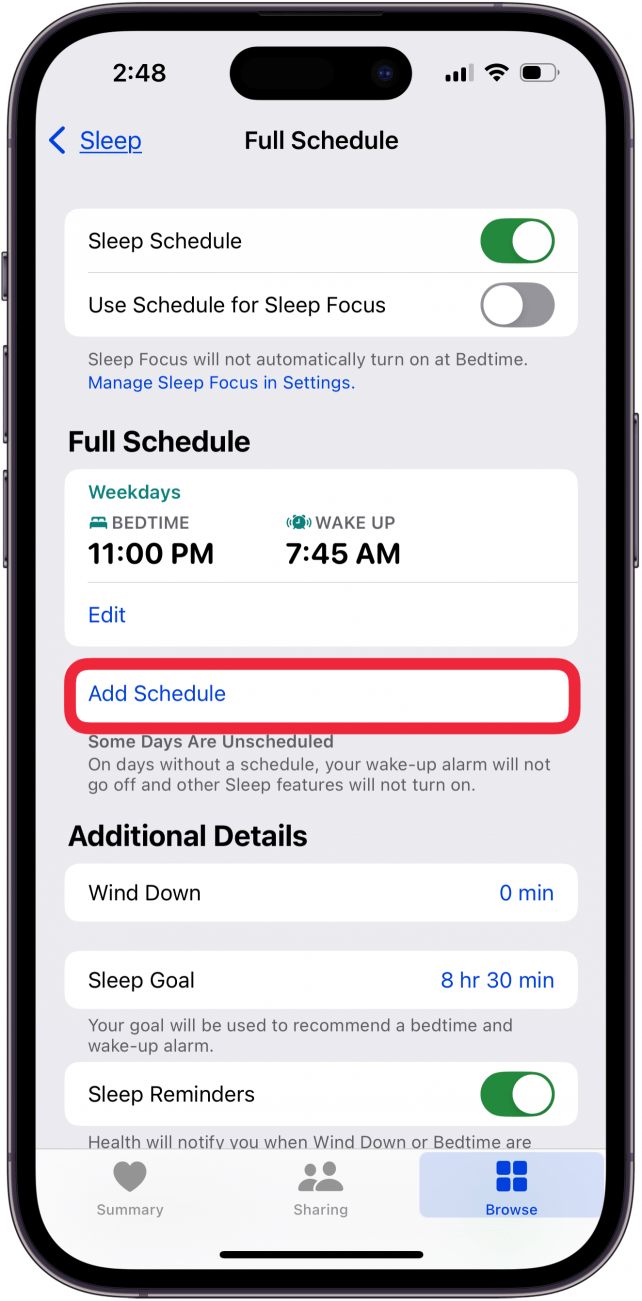
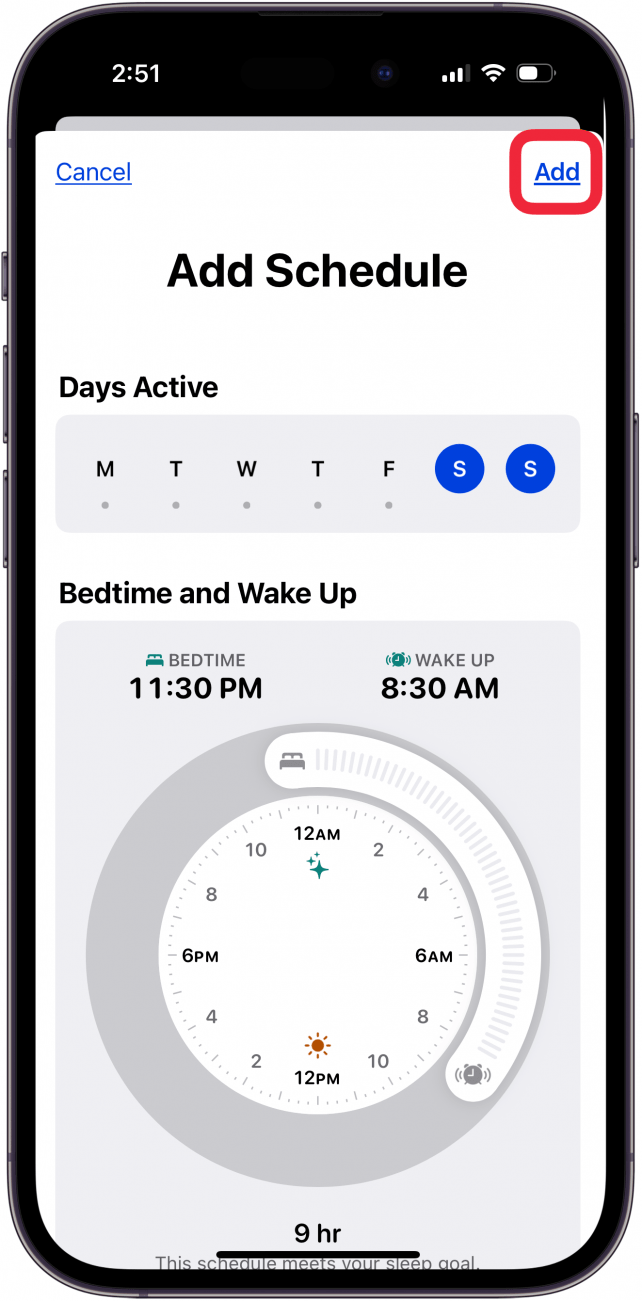
If you have multiple sleep schedules, you can tap Add Schedule.
The unscheduled days (in this case Saturday and Sunday) will be highlighted, and you can use the Bedtime and Wakeup sliders to set the sleep schedule as before, and tap Add.
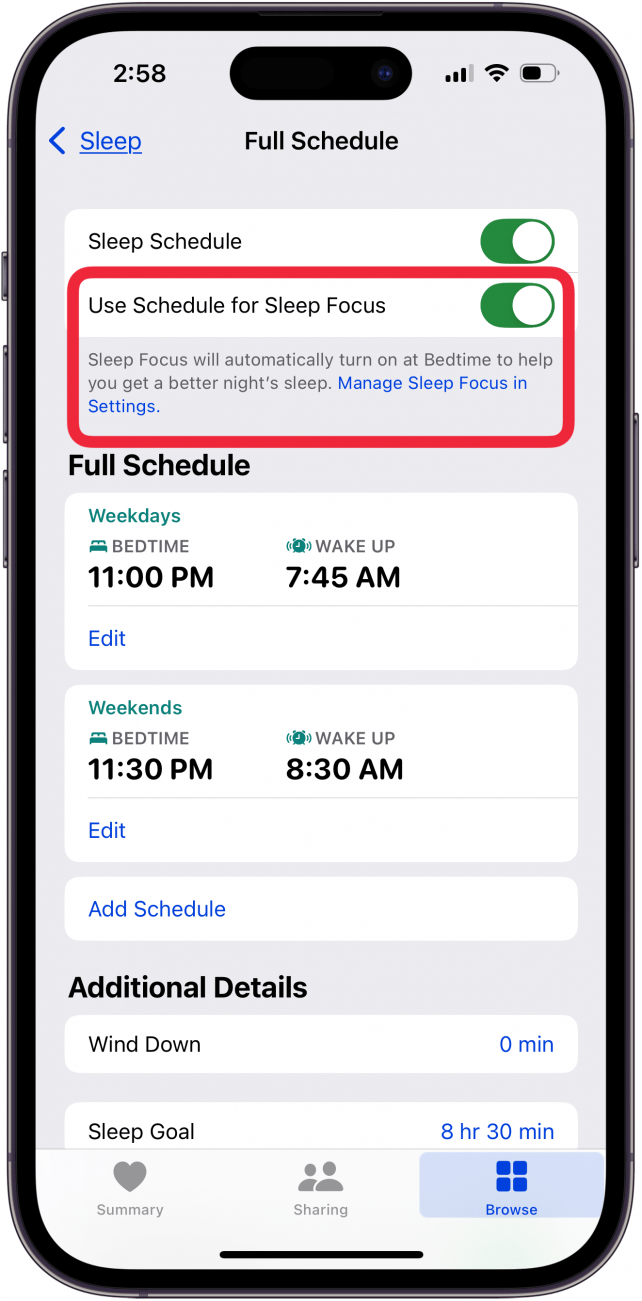
Toggle on Use Schedule for Sleep Focus to have your Sleep Focus turn on automatically at Bedtime. If this is your first time setting up Sleep, this menu may look different than the screenshot below.
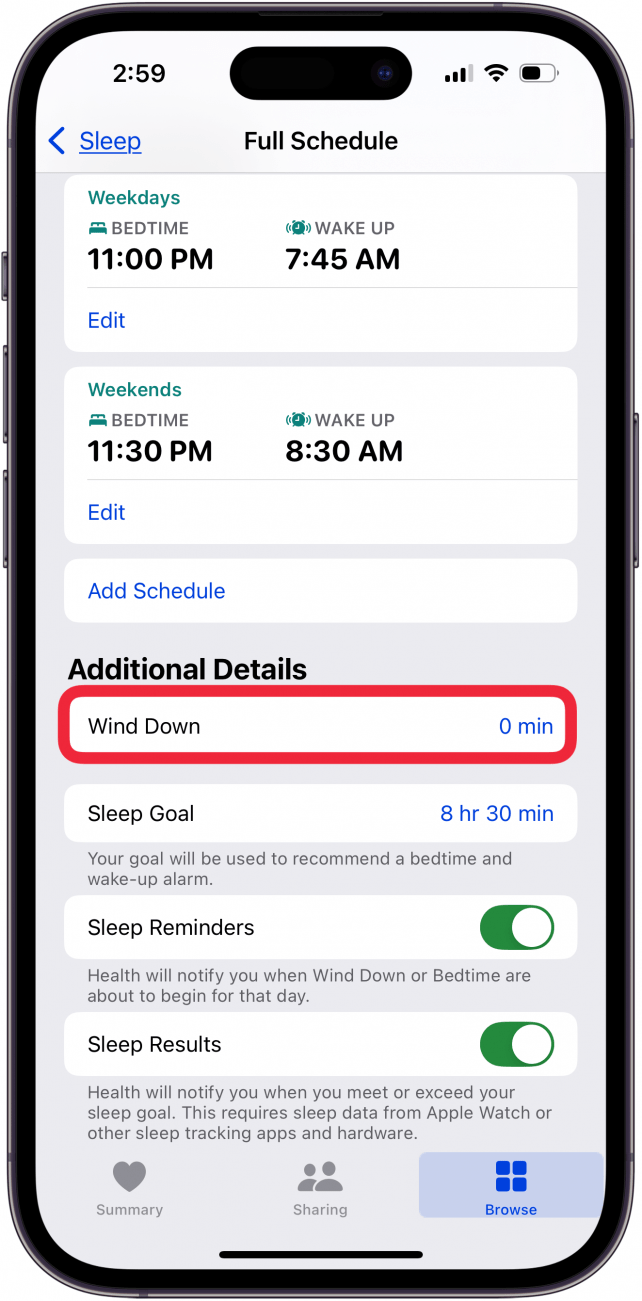
Tap Wind Down under Additional Details.
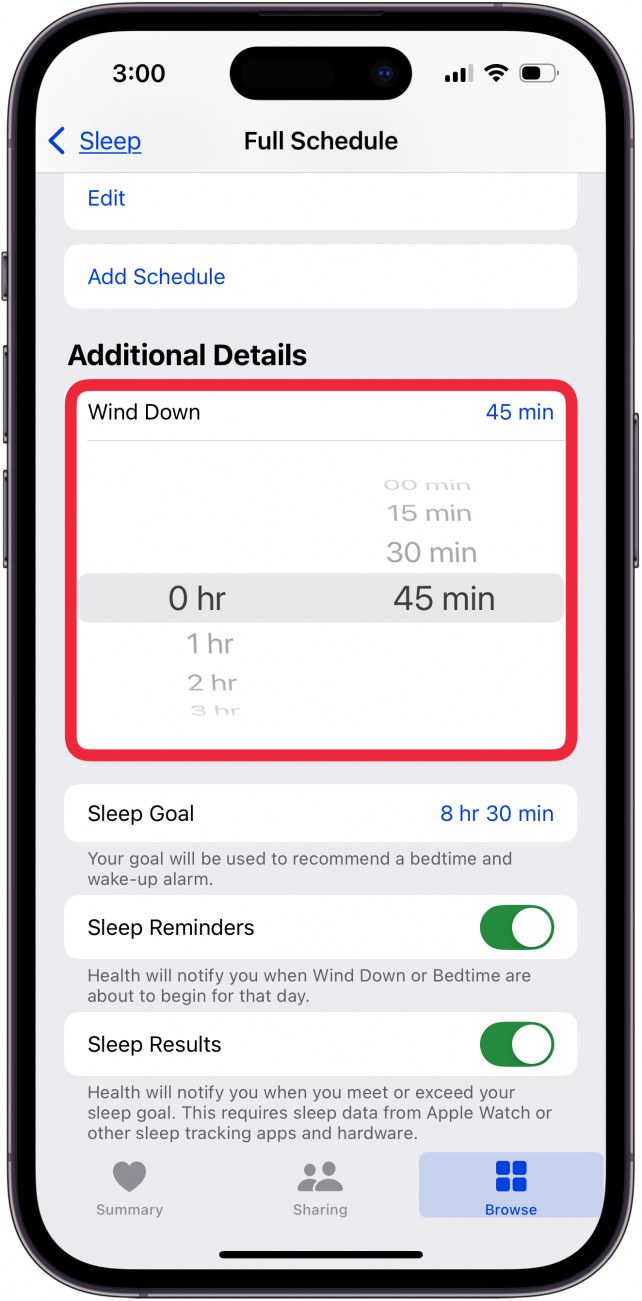
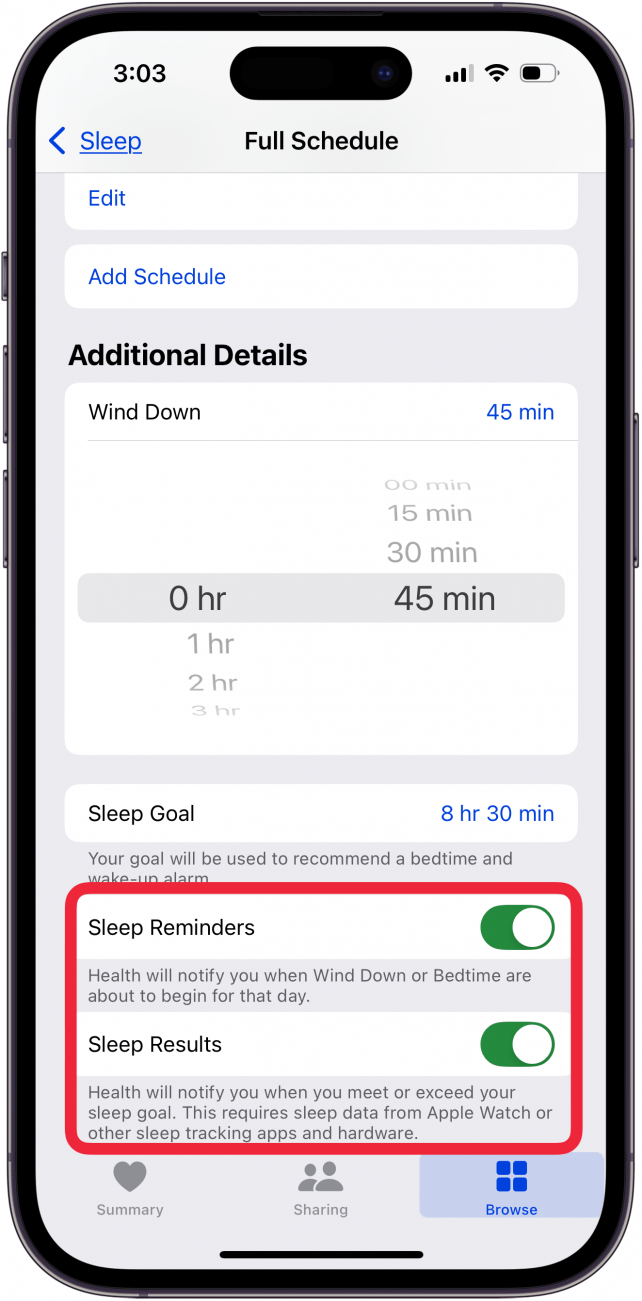
Scroll to set how long before bed you would like to start winding down. If this is your first time setting a Wind Down time, this menu may look different than the screenshot below.
You can also toggle on Sleep Reminders and Sleep Results.
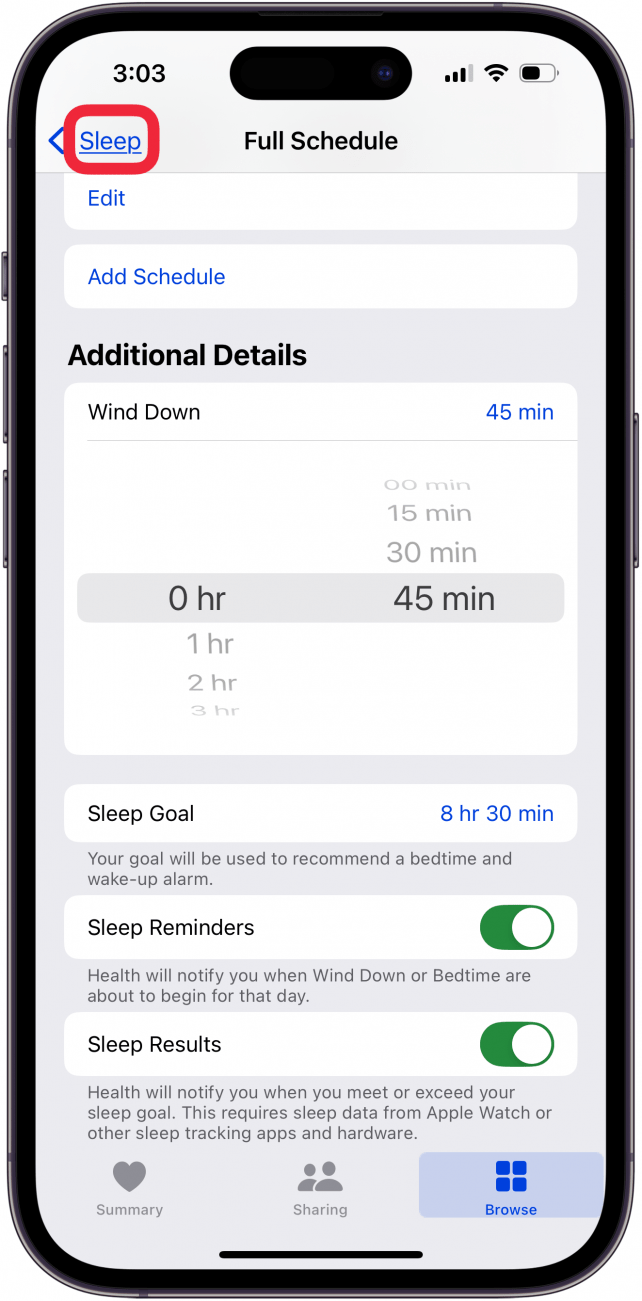
Tap Sleep to return to the previous page.
If you ever want to edit your Sleep Schedule, simply repeat steps 1-3, and then scroll down and find Your Schedule. Then, tap Edit under Next to only edit your next Sleep Schedule.
Tap Full Schedule & Options to edit your full schedule, as well as adjust settings like Wind Down time and your Sleep Goal.
Now you’ve set up Sleep in the Health app! You can adjust your schedule whenever you want, and if you have an Apple Watch, you can see data like respiratory rate, heart rate, and how many hours of sleep you are averaging.
Track sleep, heart rate, respiratory rate, temperature, blood oxygen, and sleep duration on your Apple Watch. Here’s how, from iPhone Insider (Dr Bob recommends signing up for lots of great tips and guidance on how to use your Apple Watch and iPhone 🤗
In the latest version of watchOS, the Apple Watch now has a dedicated Vitals app. The Vitals app collects your health data as you sleep and brings it all together in one convenient location. Let’s take a look at the new Apple Watch Vitals app.
Keep track of your health data in one convenient app.
Compare your current vitals with the previous week.
How To Use the Vitals App on Apple Watch
System Requirements
This tip works on Apple Watches running watchOS 11 or later. Find out how to update to the latest version of watchOS.
One of the best Apple Watch features is the ability to track your sleeping habits, like your average respiratory rate and heart rate. Now, the Vitals app provides you with a breakdown of your heart rate, respiratory rate, wrist temperature, blood oxygen level, and your sleep duration. All of this data is available in one convenient app. Here’s how to navigate the Vitals app on Apple Watch:
Open the Vitals app.
If this is your first time opening this app, you’ll be greeted by an explanation of the app. Scroll down and tap Next.
You’ll also be asked to enable notifications for this app. Tap Enable or Skip.
At the top, you’ll see an overall look at your Overnight Vitals. Tap the info icon for more details on what your vitals mean.
You can scroll down and select More Info.
This screen will tell you the difference between Typical and Outlier vitals. Tap the X to close this screen.
Scroll down to see individual breakdowns of each of your vitals. First, is Heart Rate. Like the Overnight Vitals, you can tap the info icon for more details on each Vital.
Scroll down to see your Respiratory Rate.
Next, is your Wrist Temperature.
Continue scrolling to see your Blood Oxygen level.
Lastly, you can see your Sleep Duration, which is how much sleep you got the night before.
You can tap the Calendar icon to toggle between Today’s Vitals and the past 7 days’ Vitals.
This will show you how your vitals last night compare to the previous 7 days.
That’s how to navigate the new Vitals app in watchOS 11. Each of these data points can be found in separate apps, like Heart Rate, Blood Oxygen, and Sleep, so it’s nice to have it all available at a quick glance. The Vitals app will learn you typical sleep behaviors and if there is ever an outlying bit of data, you’ll get a notification to help you improve your sleep.
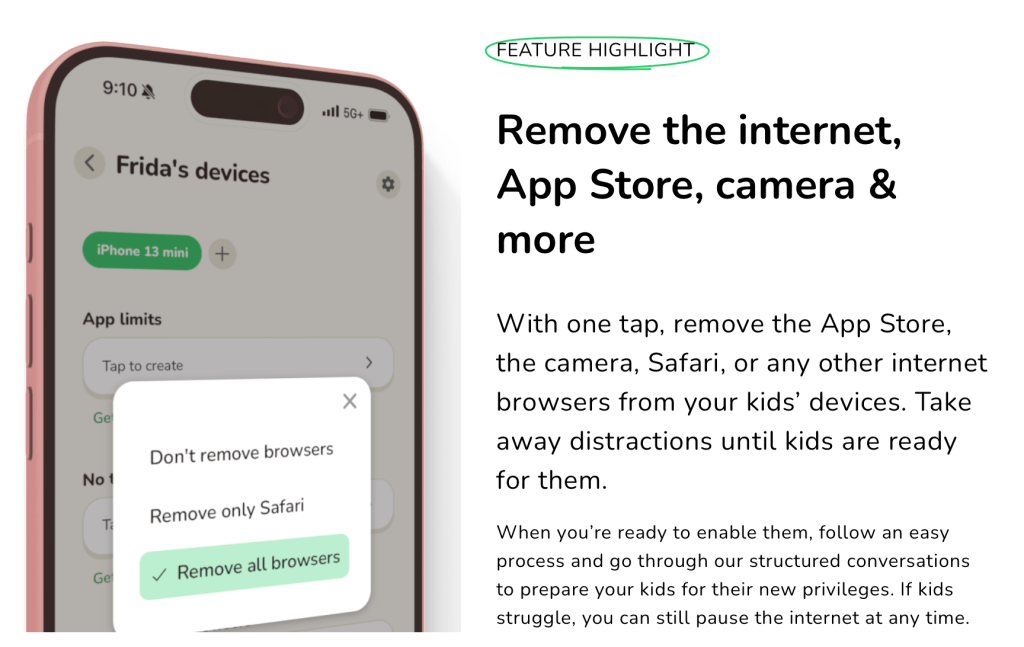
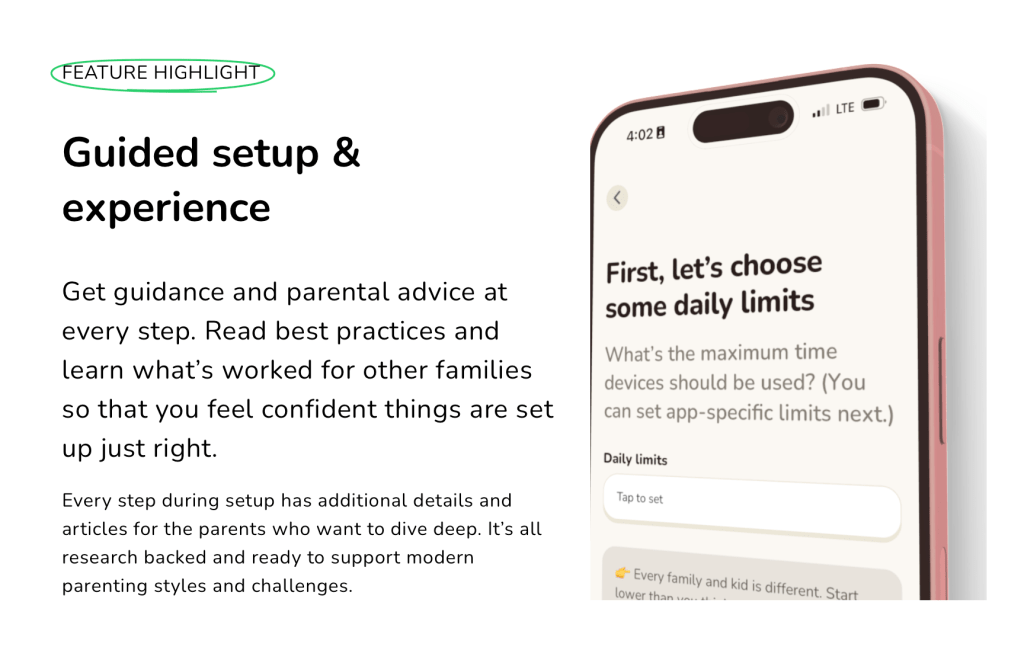
Screenable turns any iPhone or iPad into a starter phone that removes distractions, keeps you in the loop, and grows with your kid. Built for busy, modern parents.
Parenting has changed. Parental controls haven’t.
In the more than 30 years they’ve been around, parental controls have been blocking kids from doing things in apps and on devices. But they’re not working anymore – for parents or kids. And that’s a problem.
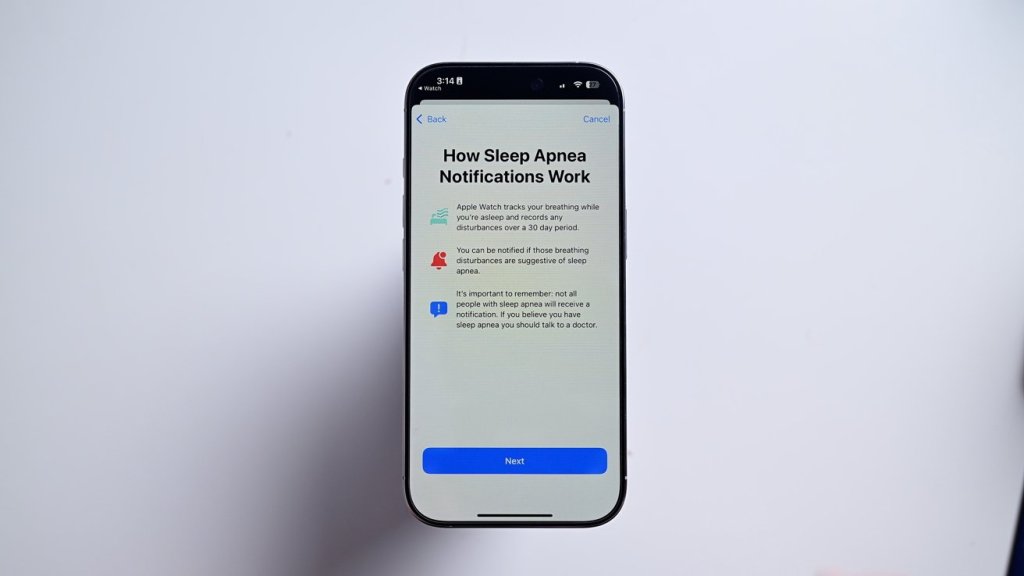
It’s quick and easy to set up sleep apnea detection. It is done from your iPhone.
• Open the Health app on your iPhone
• Go to Browse and search for “breathing disturbances”
• The first time you’ll see a button at the top that says “set up”
• Answer a couple qualifying questions and hit continue
• The app gives you a brief explainer, after which you can hit next
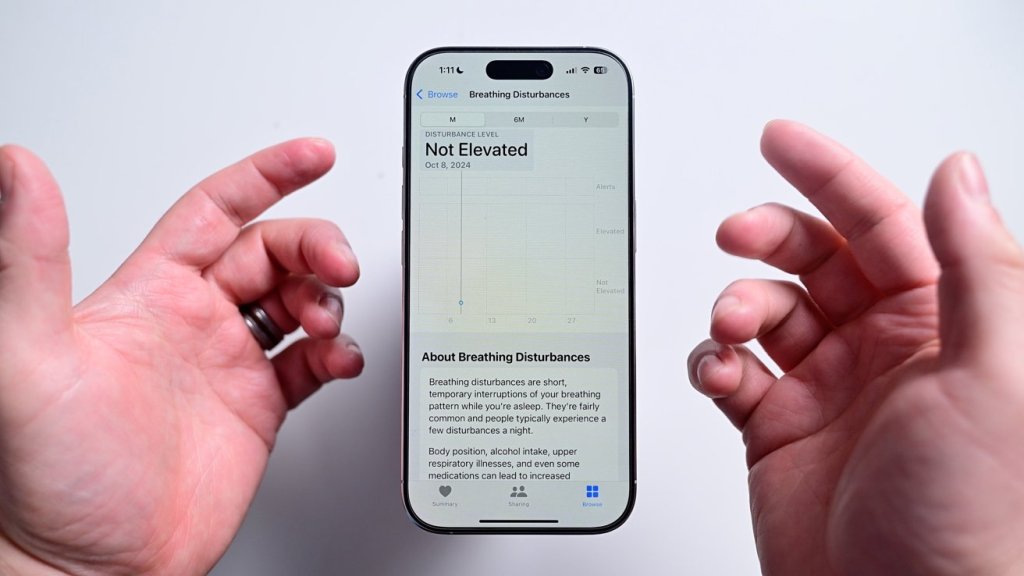
Viewing your sleep apnea results
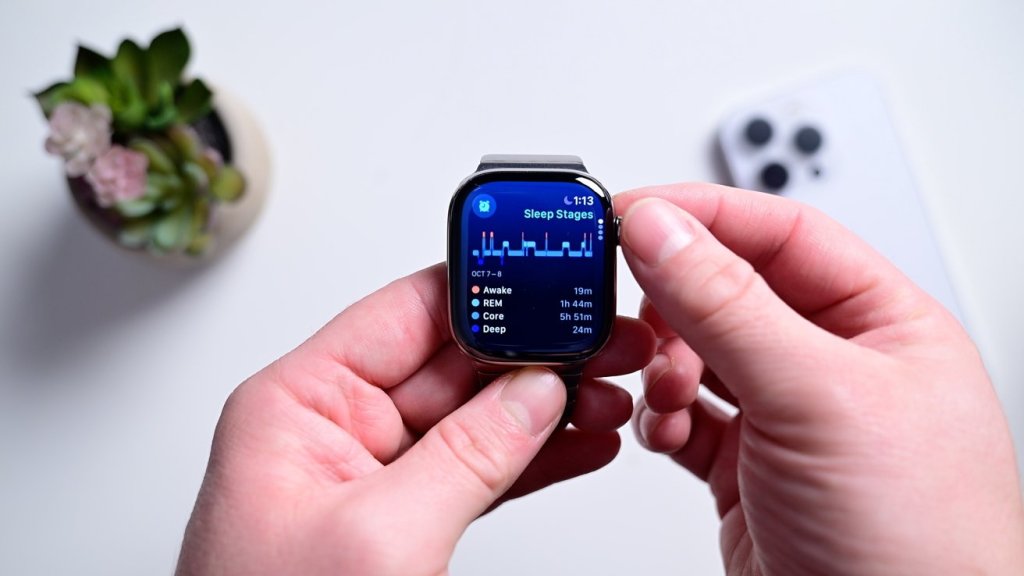
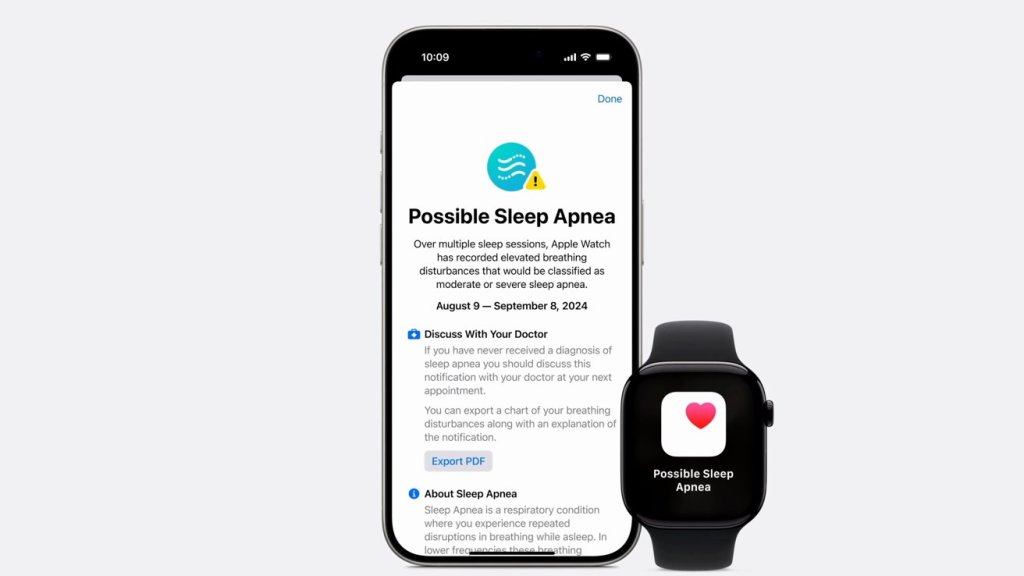
As soon as your first night you’ll see your results reflected in the Health app. If it detects an elevated level of breathing disturbances, it will proactively send you an alert.
If you want to view the data for yourself, you can open the Health app once more and navigate back to breathing disturbances. It will show each night’s results on a graph on a scale from not elevated to elevated. You can view it for each night or over time. To be clear, if a positive detection is triggered, it’s not diagnosing you with anything. The data can be exported and shared with your health care provider where they can make a further diagnosis.
Are you at risk for stroke or other condition that may affect your ability to speak? Take a look at this heartwarming video.
“In honor of International Day of Persons with Disabilities on December 3, Apple released a short film, The Lost Voice, directed by Oscar-winning Taika Waititi to shed light on the true value of this technology. The story depicts a sentimental bedtime tale about a little girl searching for her missing voice. Warning: Make sure to grab some tissues before watching!”





 CNMRI: Neurology, Sleep Medicine, MRI