Tag Archives: Apple Watch

Vitals on the Apple Watch (from iPhone Insider)

Track sleep, heart rate, respiratory rate, temperature, blood oxygen, and sleep duration on your Apple Watch. Here’s how, from iPhone Insider (Dr Bob recommends signing up for lots of great tips and guidance on how to use your Apple Watch and iPhone 🤗

Paywalled Link on iPhone Insider

Why You’ll Love This Tip:

vitals.jpeg

In the latest version of watchOS, the Apple Watch now has a dedicated Vitals app. The Vitals app collects your health data as you sleep and brings it all together in one convenient location. Let’s take a look at the new Apple Watch Vitals app.

  • Keep track of your health data in one convenient app.
  • Compare your current vitals with the previous week.

How To Use the Vitals App on Apple Watch

System Requirements

This tip works on Apple Watches running watchOS 11 or later. Find out how to update to the latest version of watchOS.

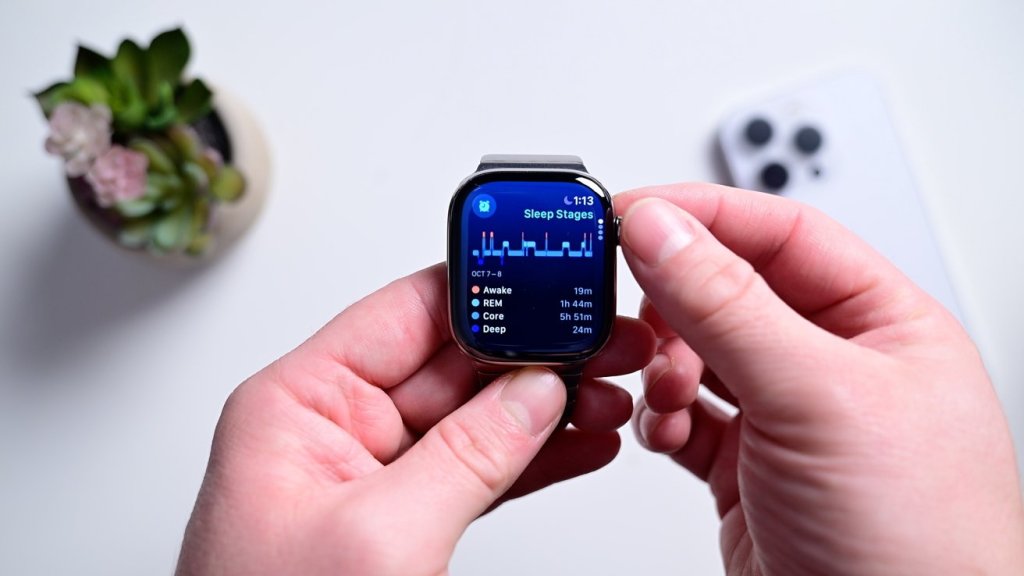
One of the best Apple Watch features is the ability to track your sleeping habits, like your average respiratory rate and heart rate. Now, the Vitals app provides you with a breakdown of your heart rate, respiratory rate, wrist temperature, blood oxygen level, and your sleep duration. All of this data is available in one convenient app. Here’s how to navigate the Vitals app on Apple Watch:

  1. Open the Vitals app.
    img_3220.png
  2. If this is your first time opening this app, you’ll be greeted by an explanation of the app. Scroll down and tap Next.
    img_3221.png
  3. You’ll also be asked to enable notifications for this app. Tap Enable or Skip.
    img_3222.png
  4. At the top, you’ll see an overall look at your Overnight Vitals. Tap the info icon for more details on what your vitals mean.
    img_3223_0.png
  5. You can scroll down and select More Info.
    img_3224_0.png
  6. This screen will tell you the difference between Typical and Outlier vitals. Tap the X to close this screen.
    img_3226_0.png
  7. Scroll down to see individual breakdowns of each of your vitals. First, is Heart Rate. Like the Overnight Vitals, you can tap the info icon for more details on each Vital.
    img_3227_0.png
  8. Scroll down to see your Respiratory Rate.
    img_3228_1.png
  9. Next, is your Wrist Temperature.
    apple watch vitals app with a red box around wrist temp
  10. Continue scrolling to see your Blood Oxygen level.
    apple watch vitals app with a red box around blood oxygen
  11. Lastly, you can see your Sleep Duration, which is how much sleep you got the night before.
    apple watch vitals app with a red box around sleep duration
  12. You can tap the Calendar icon to toggle between Today’s Vitals and the past 7 days’ Vitals.
    apple watch vitals app with a red box around calendar icon
  13. This will show you how your vitals last night compare to the previous 7 days.
    apple watch vitals app with a red box around a 7 day graph showing vitals data over the past week

That’s how to navigate the new Vitals app in watchOS 11. Each of these data points can be found in separate apps, like Heart Rate, Blood Oxygen, and Sleep, so it’s nice to have it all available at a quick glance. The Vitals app will learn you typical sleep behaviors and if there is ever an outlying bit of data, you’ll get a notification to help you improve your sleep.

How to detect sleep apnea with Apple Watch

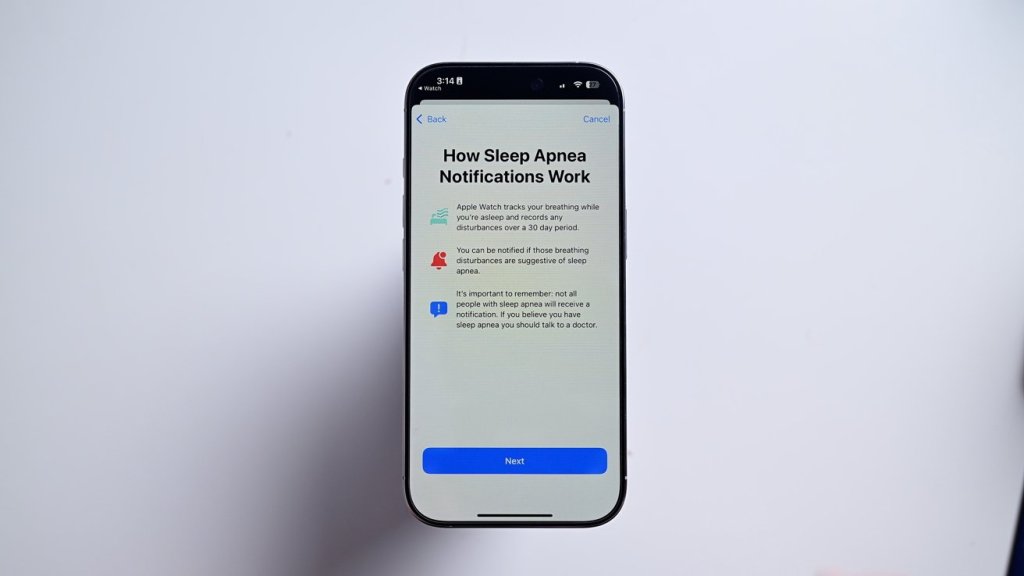
It’s quick and easy to set up sleep apnea detection. It is done from your iPhone.

• Open the Health app on your iPhone

• Go to Browse and search for “breathing disturbances”

• The first time you’ll see a button at the top that says “set up”

• Answer a couple qualifying questions and hit continue

• The app gives you a brief explainer, after which you can hit next

Viewing your sleep apnea results

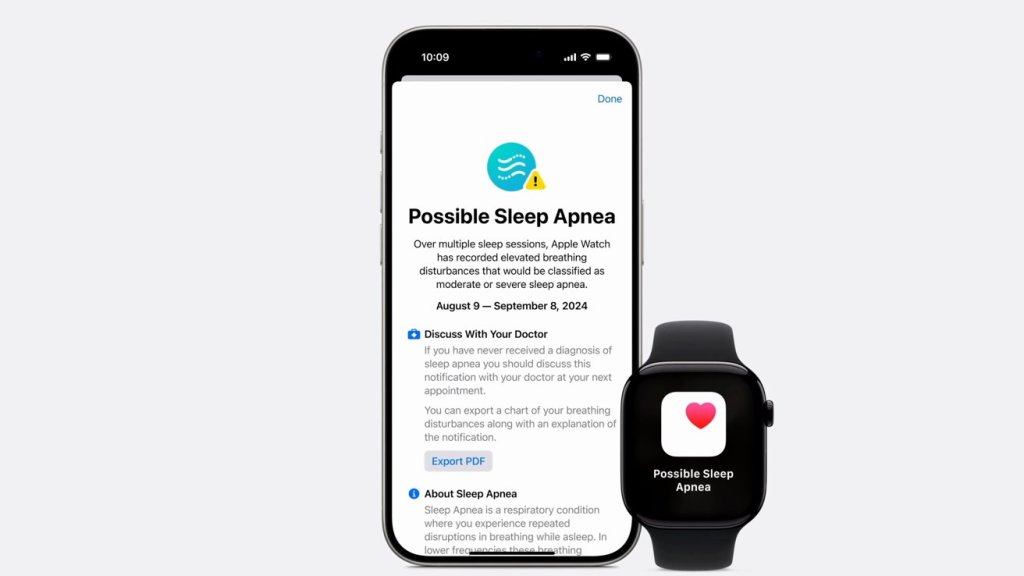
As soon as your first night you’ll see your results reflected in the Health app. If it detects an elevated level of breathing disturbances, it will proactively send you an alert.

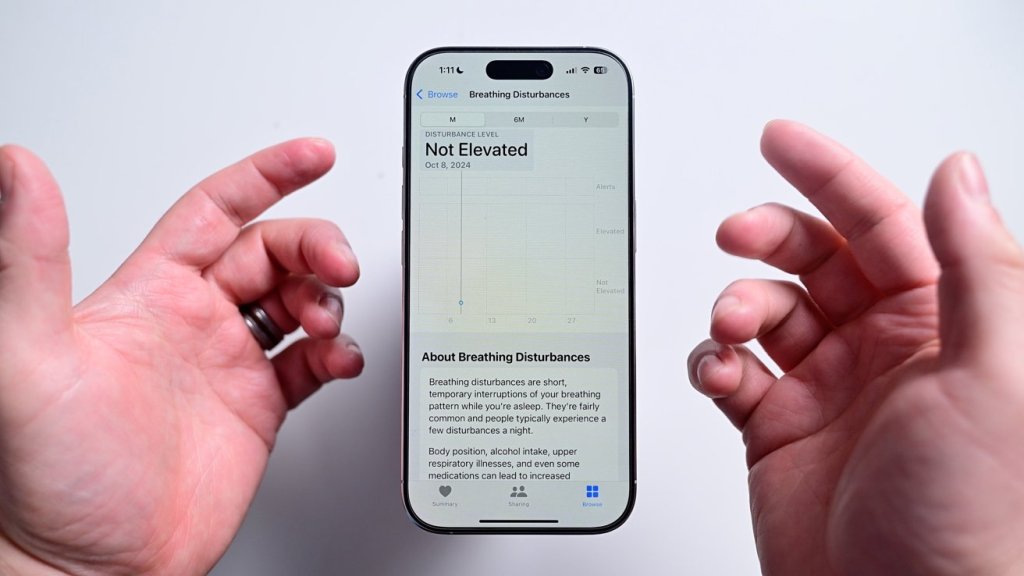
If you want to view the data for yourself, you can open the Health app once more and navigate back to breathing disturbances. It will show each night’s results on a graph on a scale from not elevated to elevated. You can view it for each night or over time. To be clear, if a positive detection is triggered, it’s not diagnosing you with anything. The data can be exported and shared with your health care provider where they can make a further diagnosis.

https://appleinsider.com/inside/apple-watch/tips/how-to-detect-sleep-apnea-with-apple-watch

Best Sleep Tracker

TL: DR My two favorites: Autosleep on iPhone and Sleep as Android

In today’s fast-paced world, getting a good night’s sleep is more important than ever. To help you monitor and improve your sleep patterns, there are numerous sleep tracker apps available. My recommendations are Autosleep for iPhone and Sleep as Android. In this blog post, we’ll compare these two sleep tracker apps, highlighting their features, user interfaces, and overall performance to help you make an informed choice for tracking your sleep.

Autosleep

Autosleep is a dedicated sleep tracking app exclusively available for iOS devices. Developed by Tantsissa, it offers a user-friendly interface and a robust set of features tailored for iPhone and Apple Watch users.

Automatic Tracking: Autosleep uses advanced algorithms to automatically detect when you fall asleep and wake up, eliminating the need for manual input.
Sleep Score: The app calculates a Sleep Score based on the quality and duration of your sleep, providing insights into your sleep patterns.
Sleep Rings: It visualizes your sleep data in a ring format, making it easy to understand at a glance.
Detailed Sleep Analysis: Autosleep provides in-depth statistics about your sleep cycles, heart rate, and more.
Integration with Health App: The app seamlessly integrates with the Apple Health app, allowing you to centralize your health data.
User Interface: Autosleep boasts an intuitive and visually appealing interface, making it easy for users to navigate through their sleep data. The Sleep Rings feature is particularly engaging and informative.
https://autosleepapp.tantsissa.com/home

Sleep as Android

Sleep as Android is a versatile sleep tracking app available for Android devices. Developed by Urbandroid, it offers a wide range of features and is known for its extensive customization options.:

Comprehensive Tracking: Sleep as Android tracks your sleep cycles, snoring, and even your sleep talk to provide a holistic view of your sleep quality.
Smart Alarms: The app offers smart alarms that wake you up at the optimal time within a set time window, reducing grogginess.
Integration with Wearables: It supports various wearables and sensors, allowing you to use devices like smartwatches and fitness trackers for sleep tracking.
Sleep Notes: You can add custom notes about your sleep, which can help identify patterns and triggers affecting your sleep.
Captivating Sleep Charts: Sleep as Android generates detailed sleep charts and graphs for in-depth analysis.
User Interface: While Sleep as Android offers a wealth of features, some users may find its interface less intuitive compared to Autosleep. However, its customization options make it suitable for those who prefer to tailor their sleep tracking experience.
https://sleep.urbandroid.org

Summary

Both Apps are excellent sleep trackers. Autosleep happily does not require a subscription and only costs $5.99, a worthwhile investment. Autosleep works much better if you have an Apple Watch. Sleep for Android requires a subscription or initial $40 one time payment and also works much better if you have a wearable device.