The Health app now allows you to set up a Sleep Schedule that works with your Sleep Focus on iPhone to help you get a good night’s sleep. Find out how to set up Sleep in the Health app.
Go to bed on time with a bedtime reminder on your iPhone.
Get a healthy amount of sleep by setting up a Sleep Schedule and Sleep Goal on your iPhone.
How to Set Up Sleep in the Health App
System Requirements
This tip was performed on an iPhone 16 running iOS 18.3.1. Find out how to update to the latest version of iOS.
You can use the Sleep in the Health app to improve your sleep routine. Here’s how to use Sleep to set up Sleep Goals on your iPhone, change Sleep Goals, set up a Sleep Schedule, set a Bedtime Reminder and wakeup alarm, and more. Now, here’s how to set up Sleep in the Health app:
Open the Health app.
Tap the Browse tab.
Scroll down and tap Sleep.
If this is your first time accessing the Sleep settings, tap Get Started to set up your Sleep Schedule.
Tap You do not have a Sleep schedule under Full Schedule & Options.
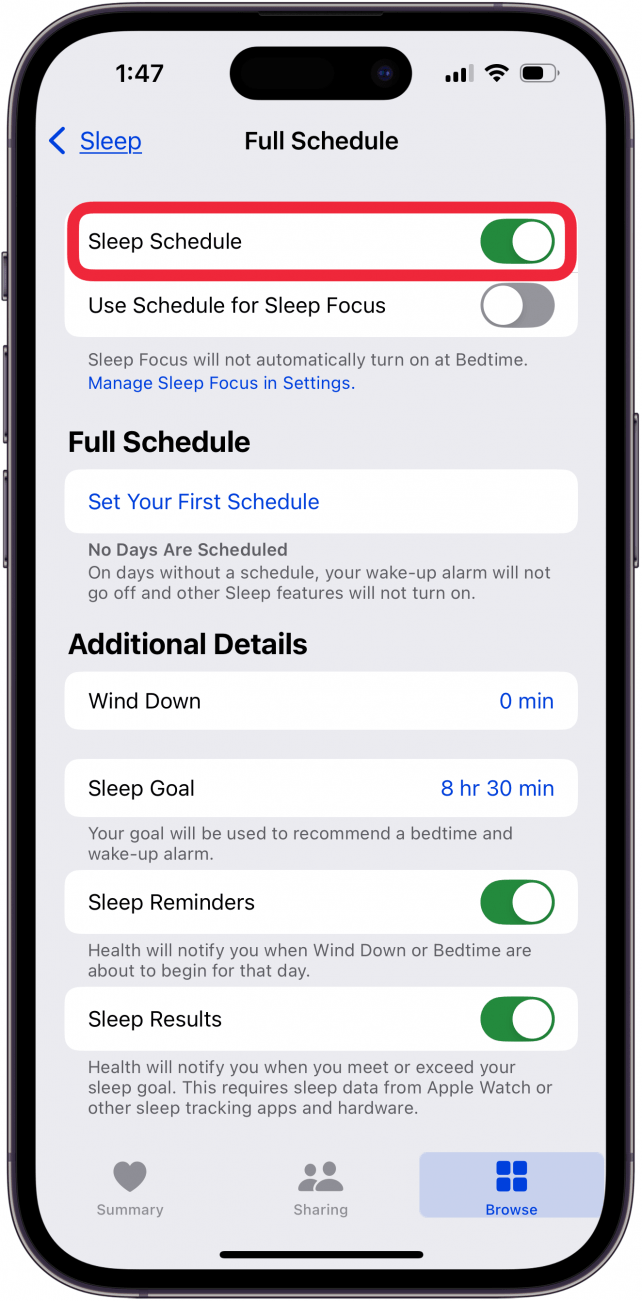
Toggle on Sleep Schedule.
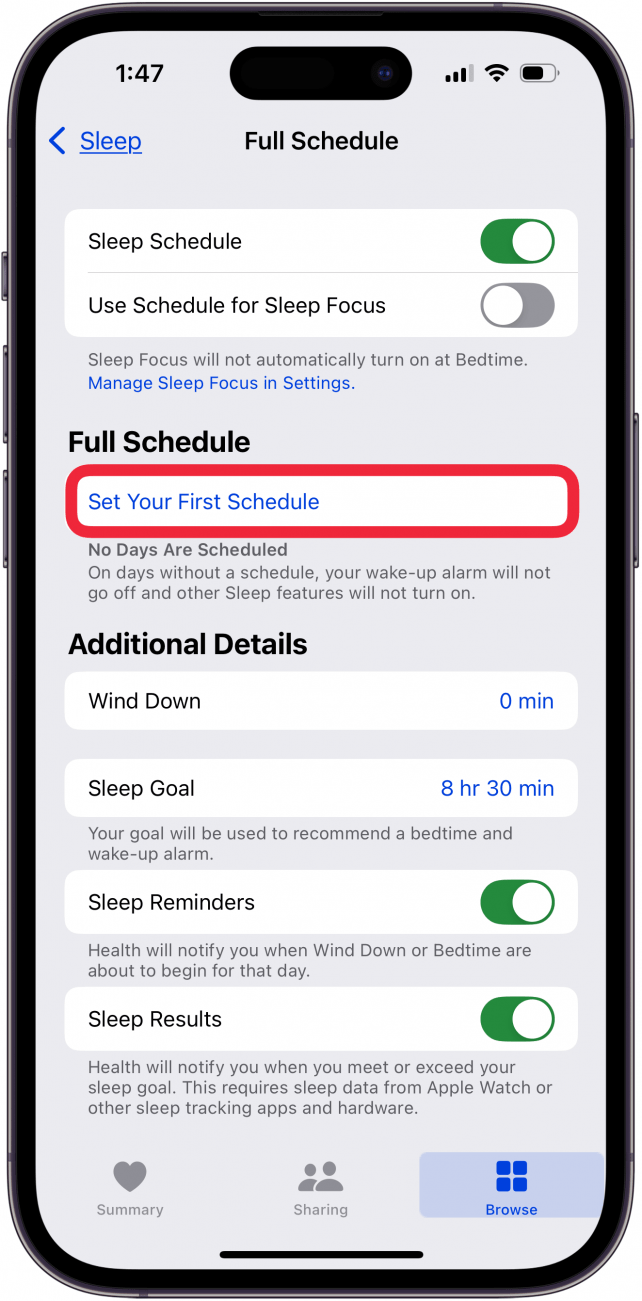
Tap Set Your First Schedule.
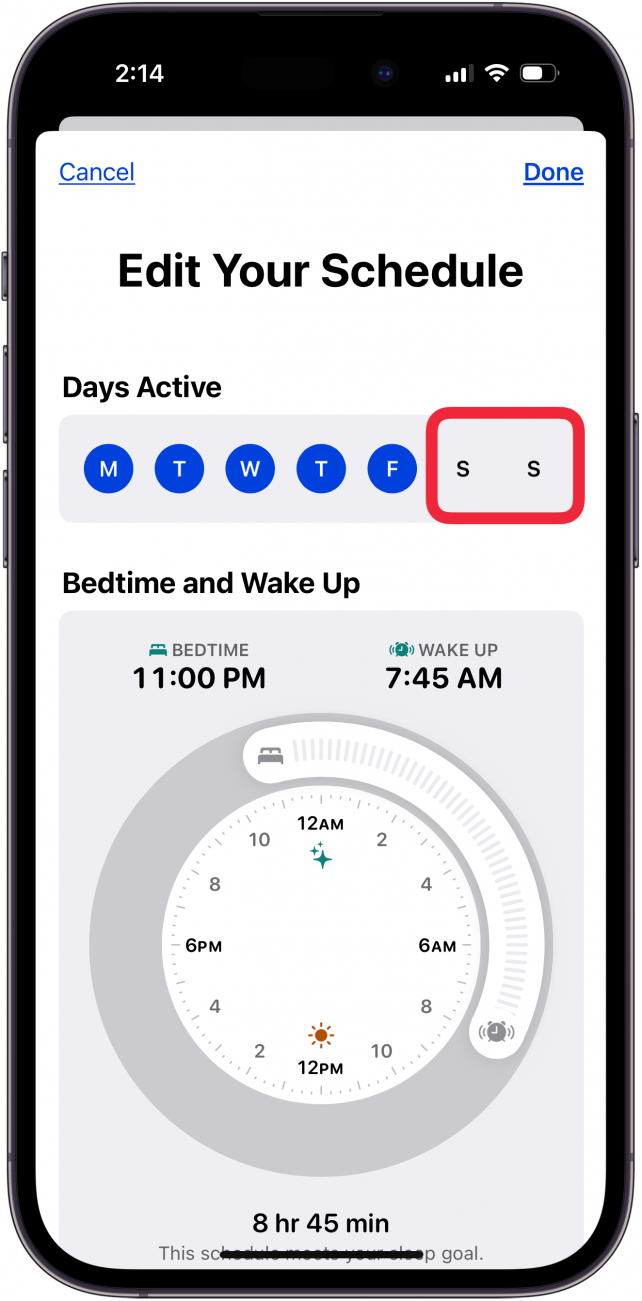
Tap the days you DON’T WANT included in your sleep schedule.
To set your bedtime and wake-up times, drag the Bedtime and Wakeup sliders to when you want to go to sleep and wake up.
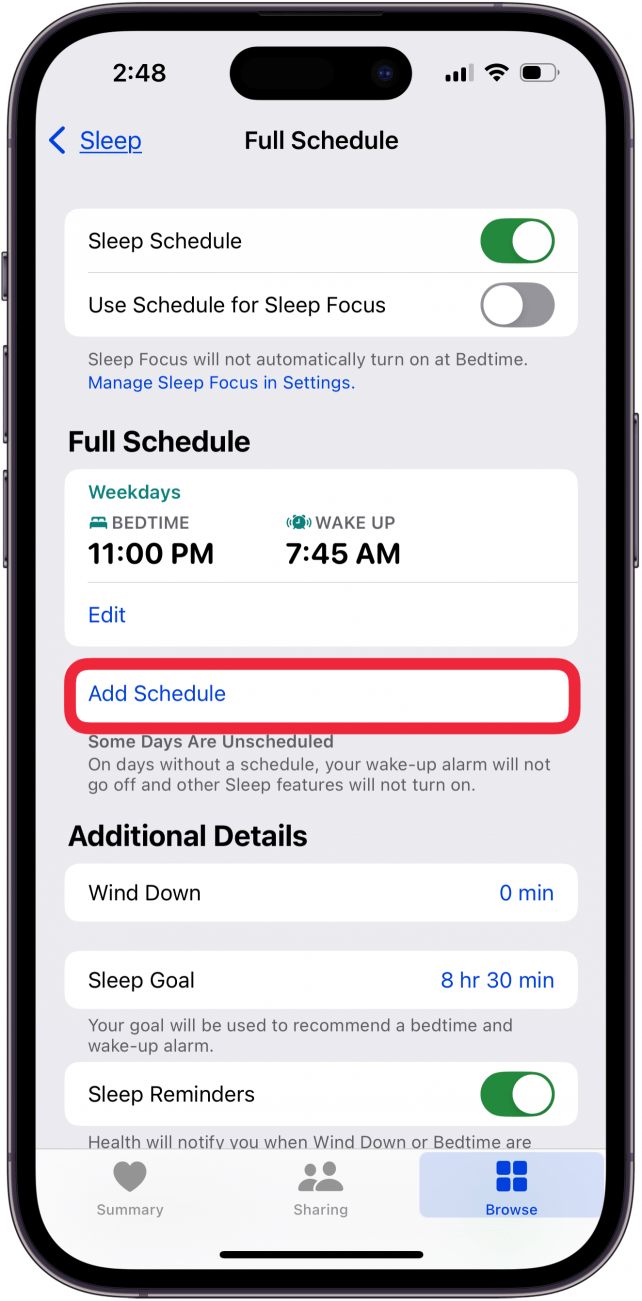
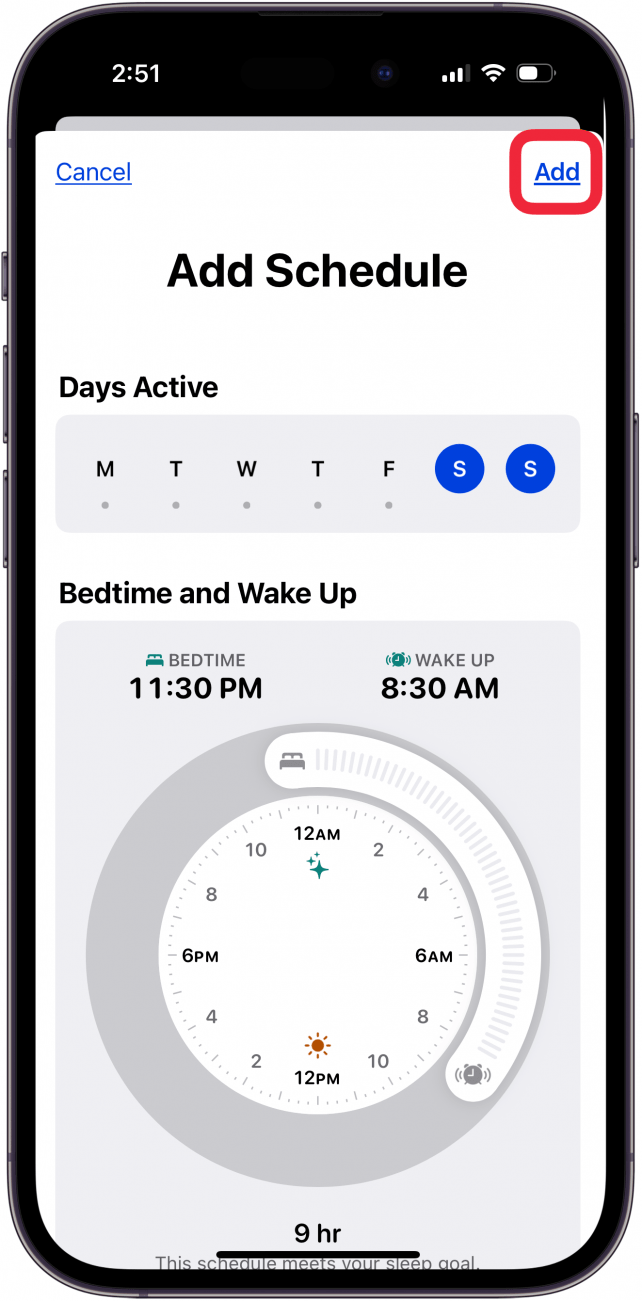
If you have multiple sleep schedules, you can tap Add Schedule.
The unscheduled days (in this case Saturday and Sunday) will be highlighted, and you can use the Bedtime and Wakeup sliders to set the sleep schedule as before, and tap Add.
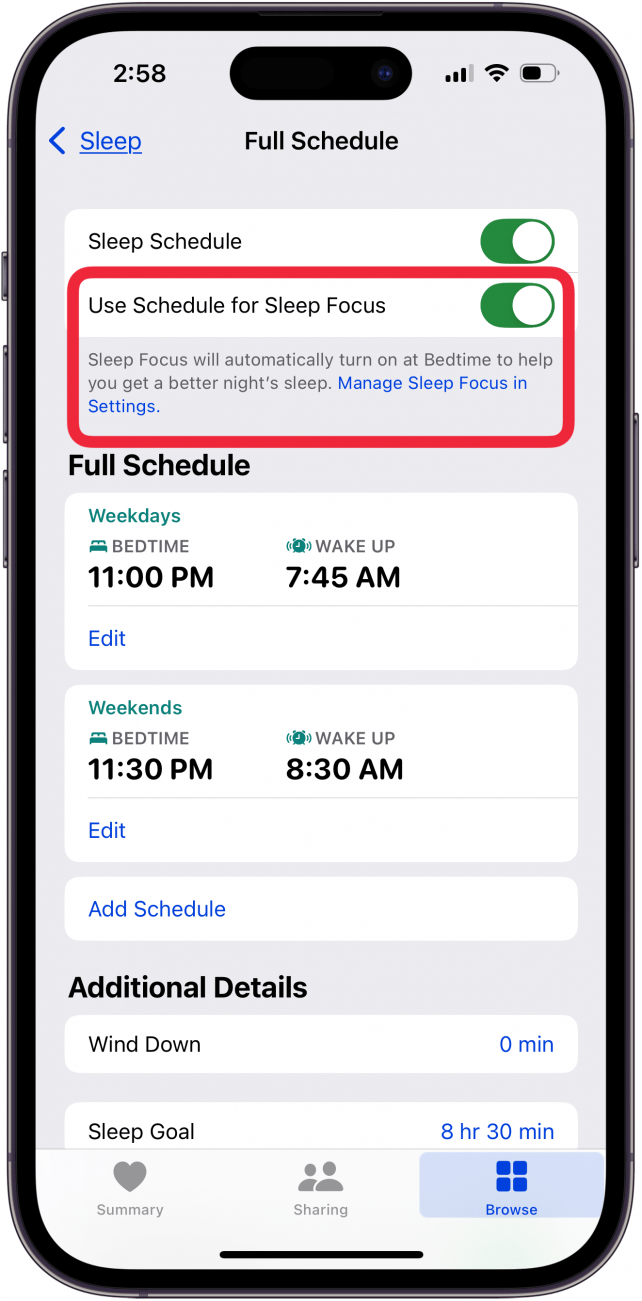
Toggle on Use Schedule for Sleep Focus to have your Sleep Focus turn on automatically at Bedtime. If this is your first time setting up Sleep, this menu may look different than the screenshot below.
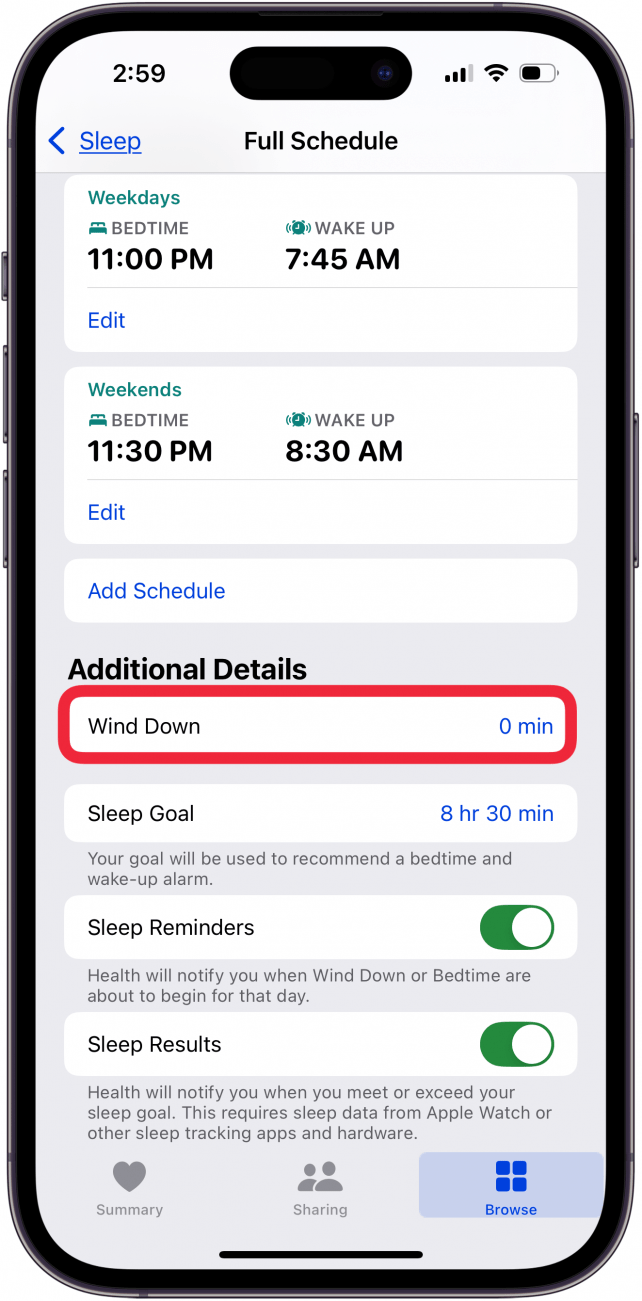
Tap Wind Down under Additional Details.
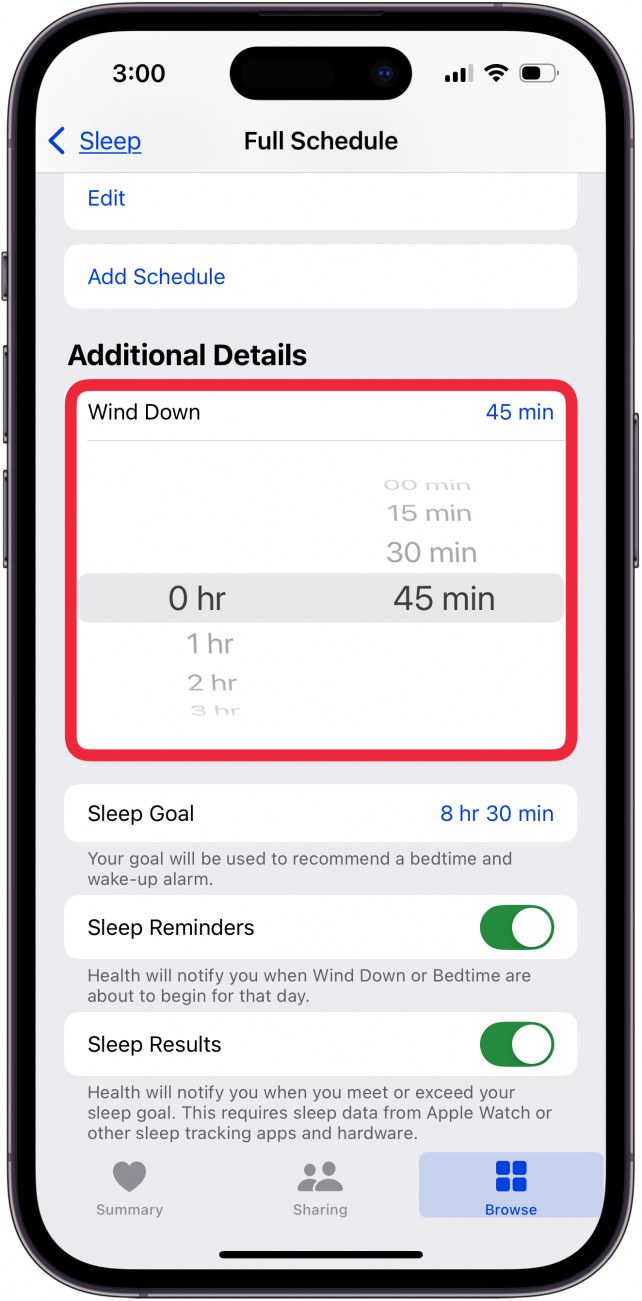
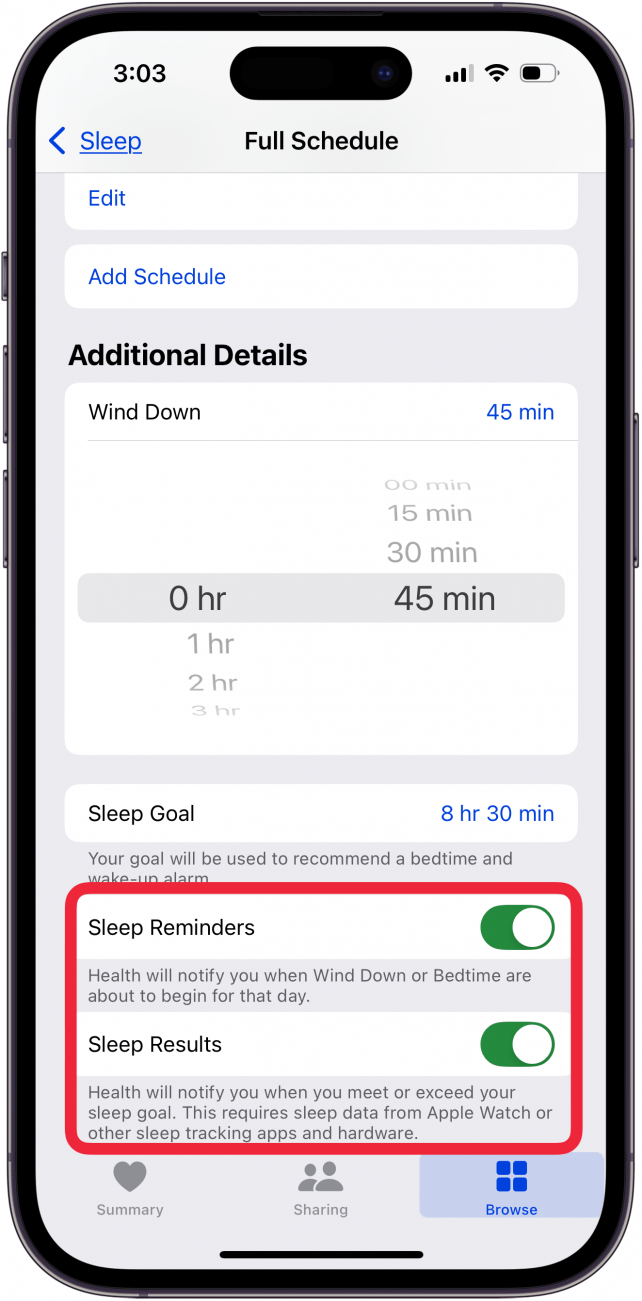
Scroll to set how long before bed you would like to start winding down. If this is your first time setting a Wind Down time, this menu may look different than the screenshot below.
You can also toggle on Sleep Reminders and Sleep Results.
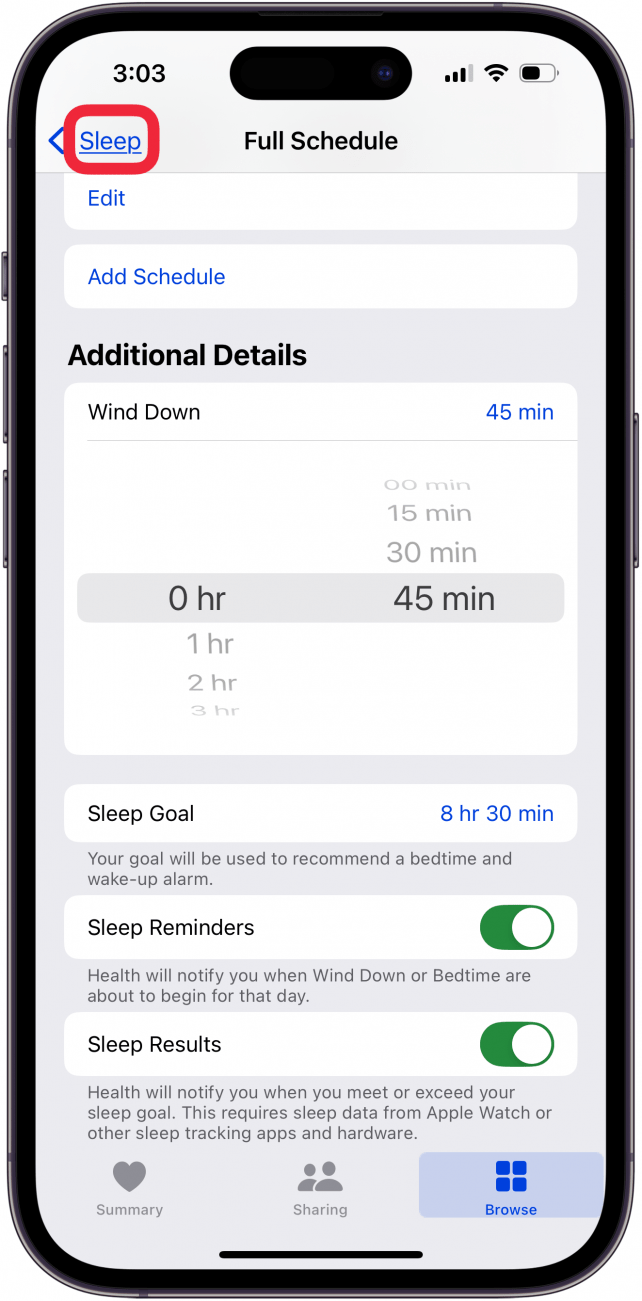
Tap Sleep to return to the previous page.
If you ever want to edit your Sleep Schedule, simply repeat steps 1-3, and then scroll down and find Your Schedule. Then, tap Edit under Next to only edit your next Sleep Schedule.
Tap Full Schedule & Options to edit your full schedule, as well as adjust settings like Wind Down time and your Sleep Goal.
Now you’ve set up Sleep in the Health app! You can adjust your schedule whenever you want, and if you have an Apple Watch, you can see data like respiratory rate, heart rate, and how many hours of sleep you are averaging.
The U.S. Food and Drug Administration on Thursday authorized the Hearing Aid Feature, its first over-the-counter hearing aid software device that is intended to be used with the Apple AirPods Pro.
Why it matters: A hearing aid that’s built into a relatively inexpensive and easily accessible product that many people already own could help far more people get the hearing help they need.
How it works: The Hearing Aid Feature is set up using an iOS device, such as the iPhone, and the user’s hearing levels are accessed from the iOS HealthKit to customize it. Users can refine the volume, tone and balance settings after setting up the feature.
‘Wearables’ are a great way to monitor a variety of health parameters, including general activity, workouts, heart rate, heart rate variability, sleep, among others.
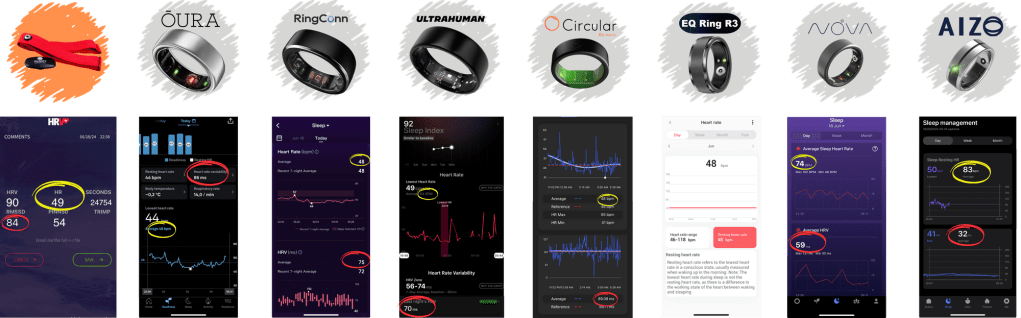
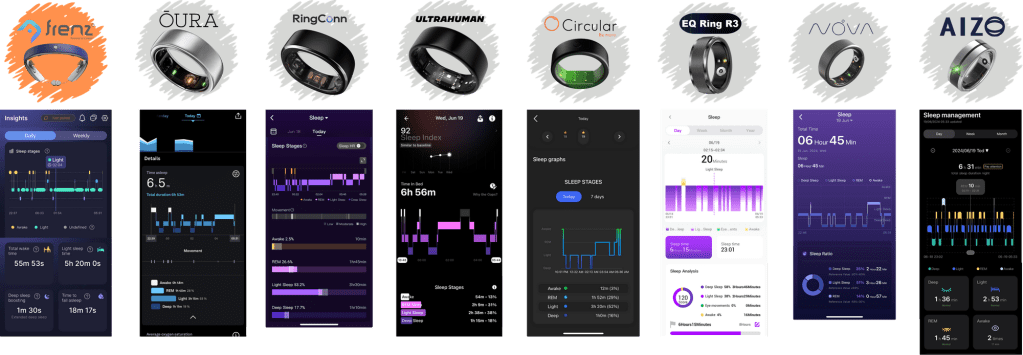
If you’re not into an Apple Watch or Fitbit, you might want to try a wearable ring, seven of which are compared in the linked article in much detail.
Oura is probably the most known of the seven rings but I would suggest also looking at Ultrahuman (no subscription) and RingConn (lots of charts and longest battery life.)
PS: RingConn is releasing a ‘Gen2’ ring on Kickstarter for around $200, which is a great deal. Their ring has great battery life, is the smallest of all the rings, doesn’t require a subscription and features sleep apnea monitoring.






 CNMRI: Neurology, Sleep Medicine, MRI